
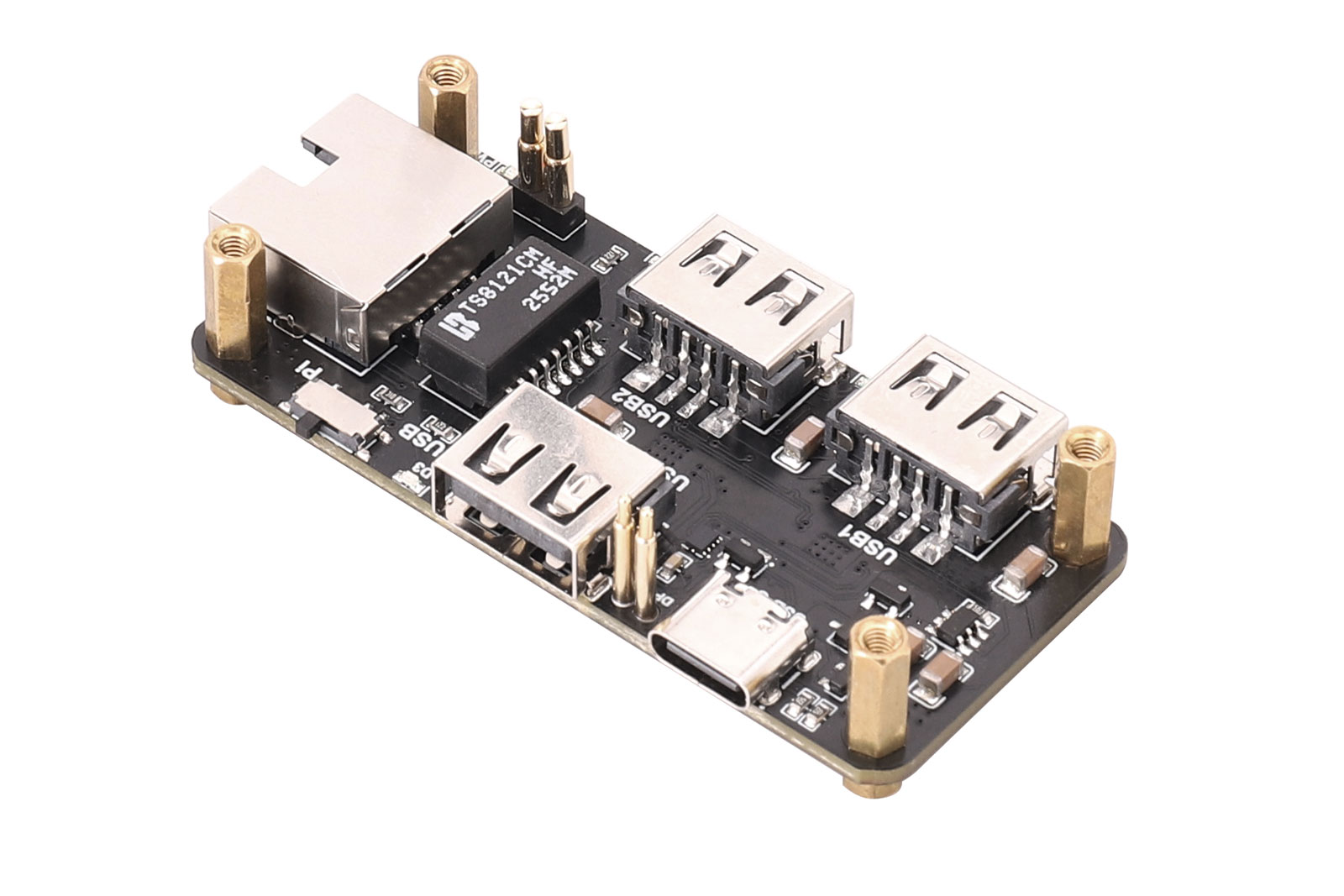
I Product Overview
This USB expansion board provides three USB 2.0 ports and a 10/100M USB Ethernet adapter.
This USB HUB ETH HAT is specially designed for the Raspberry Pi Zero series. It offers strong expansion capability in a compact form factor that matches the Raspberry Pi Zero very well. With simple installation, it expands the Raspberry Pi USB interfaces and also adds 10/100M wired network connectivity, making it suitable for applications that require multiple USB peripherals and Ethernet access.
It integrates three USB 2.0 Type-A ports and one RJ45 Ethernet port, allowing convenient connection of peripheral devices and network equipment. The onboard slide switch lets users switch the USB upstream source as needed for greater flexibility. The Type-C port can either connect to a power adapter to power the Raspberry Pi Zero, or connect to a computer to provide USB expansion and USB-to-Ethernet functions.
II Product Features
- Onboard 1 power LED and 3 USB status LEDs for clear operating status indication.
- Onboard 3 USB 2.0 expansion ports and 1 RJ45 10/100M Ethernet port.
- Onboard slide switch for fast USB upstream source selection and convenient mode switching in different use scenarios.
- Stable USB 2.0 data transmission and 10/100M Ethernet connectivity for everyday applications and peripheral networking needs.
III Product Specifications
Parameter | Description |
Model | USB HUB ETH HAT (U3E100) |
Supply Voltage | 5V |
USB Interface | USB 2.0 |
Ethernet Connector | RJ45 |
Ethernet Speed | 10/100 Mbps |
Mounting Hole Diameter | 2.5 mm |
Dimensions | 65 mm × 30 mm |
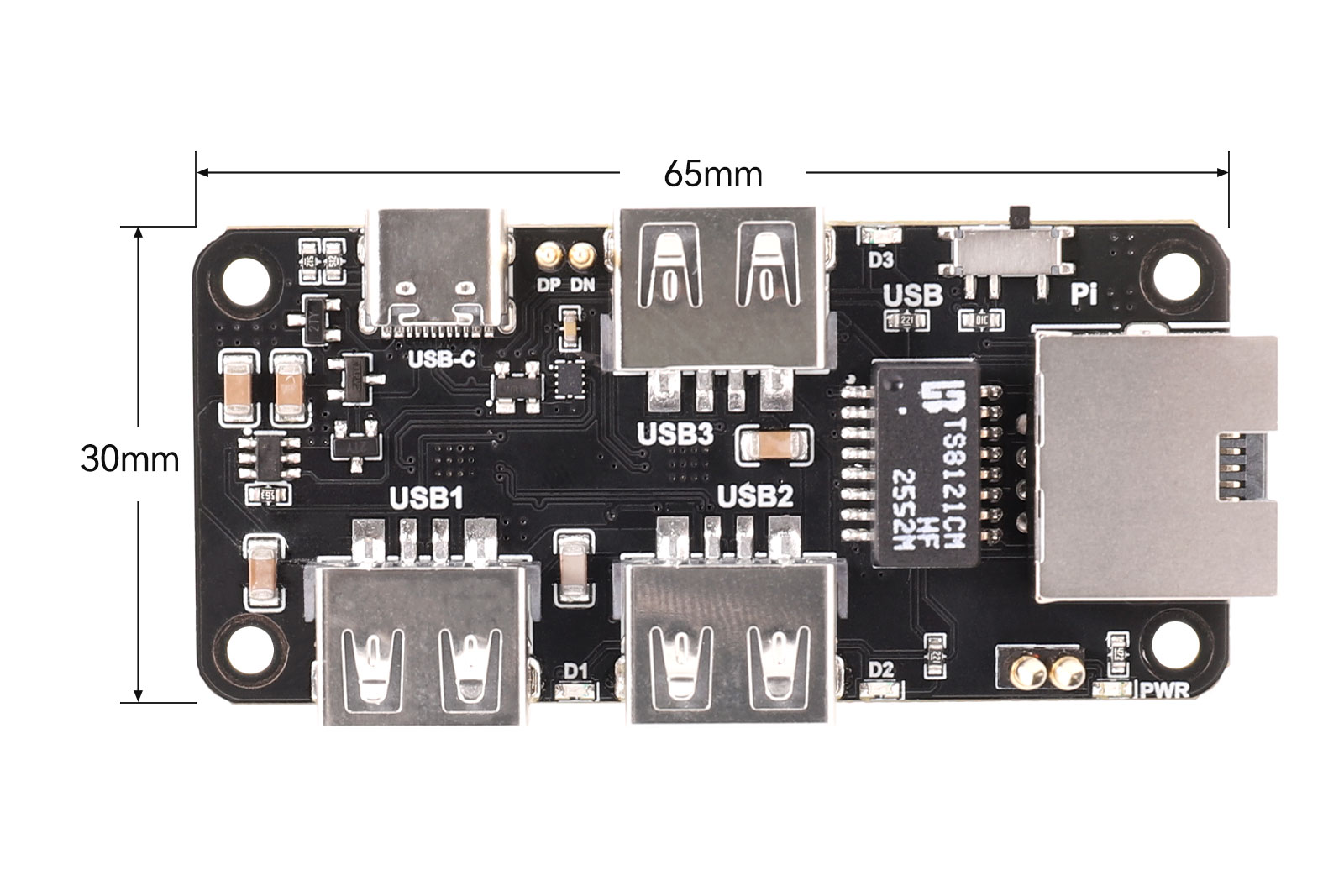
Module Resources
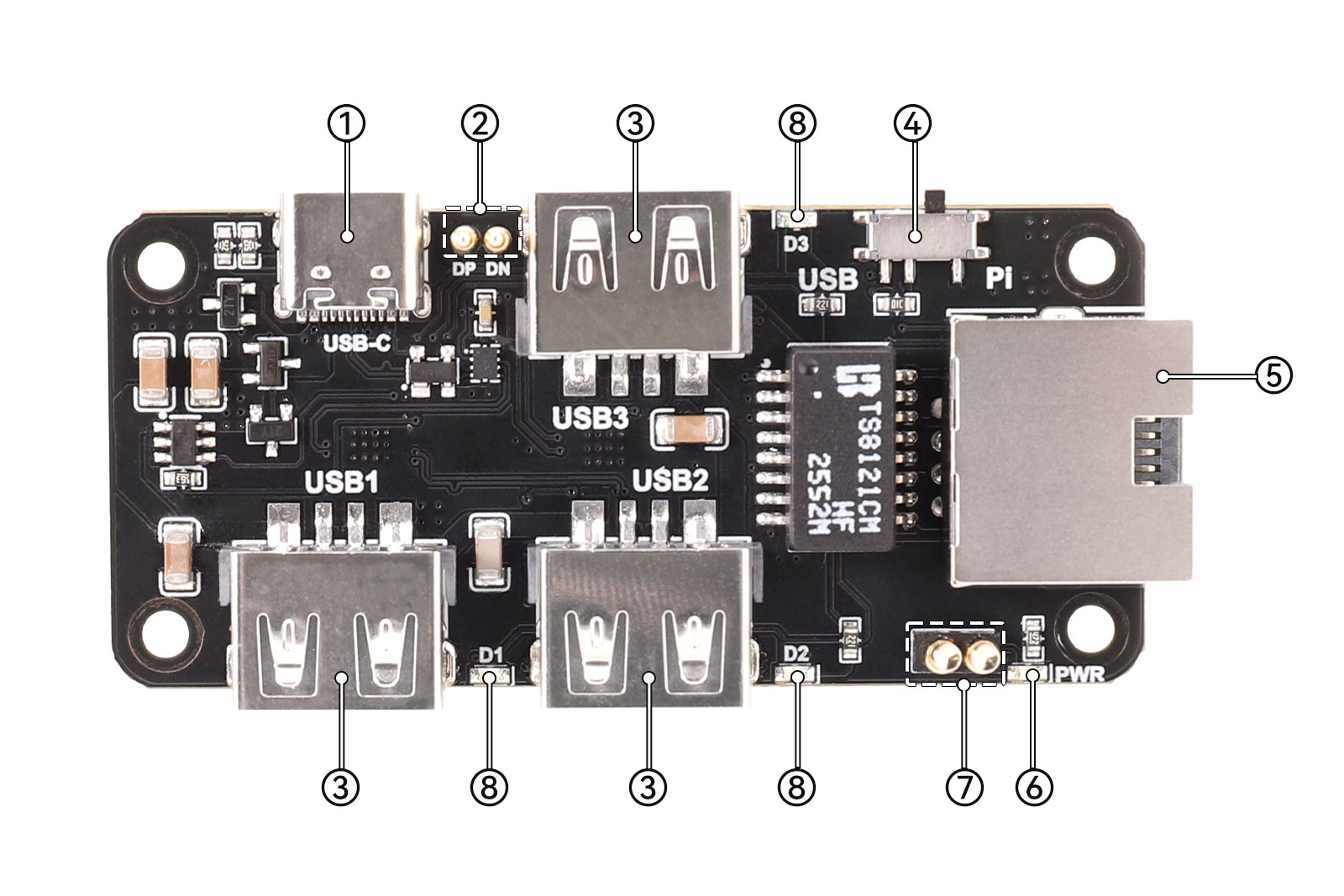
1. Type-C connector: used either to power the Raspberry Pi Zero or to enable the USB HUB ETH function
2. Raspberry Pi Zero USB header
3. USB 2.0 ports
4. Mode selection switch
5. RJ45 Ethernet connector
6. Power indicator LED
7. Power pins
8. USB port status LEDs
IV Usage
4.1 Description
4.1.1 Hardware Description
1. The onboard RJ45 Ethernet port supports 10/100M adaptive network connection and is suitable for wired network transmission. Please ensure that the Ethernet cable is compatible with the device and inserted correctly. The current network status can be identified by observing the indicator LEDs on the Ethernet port.
2. The board includes 3 onboard USB 2.0 ports, each with a corresponding USB port status indicator LED. When a device is properly connected to a USB 2.0 port, the corresponding indicator LED will light up.
3. The board is equipped with an onboard slide switch. Please move the switch to the appropriate position before use.
4.1.2 Working Mode Description
1. Pi Mode
Function: Move the slide switch to the Pi side. In this mode, the Type-C port is used to power the Raspberry Pi Zero, and the expansion board provides 3 USB ports and 1 RJ45 Ethernet port.
2. USB Dock Mode
Function: Move the slide switch to the USB side. In this mode, the Type-C port is connected to a computer USB port. The expansion board then works as a USB HUB and network adapter, providing 3 USB ports and Ethernet port functionality.
4.1.3 Precautions
· After connecting a USB device, check whether the corresponding indicator LED is lit to determine whether the USB device is connected properly.
· Do not assemble the board while powered on.
4.2 Testing
4.2.1 Using in Raspberry Pi System
Open the Raspberry Pi terminal and enter the directory to be tested:
lsblk              # View USB storage device
df -h              # View mount path, assuming it is mounted at /media/pi/UDISK
cd /media/pi/UDISK
sudo sh -c "sync && echo 3 > /proc/sys/vm/drop_caches"
sudo dd if=/dev/zero of=/device_mount_path/testfile bs=1M count=1024 oflag=direct status=progress
sudo dd if=/device_mount_path/testfile of=/dev/null bs=1M count=1024 iflag=direct status=progress
sudo rm /device_mount_path/testfile
4.2.2 Testing Network Speed in Raspberry Pi System
Use the iperf3 tool. Install it on the Raspberry Pi with the following command:
sudo apt install iperf3The same tool also needs to be installed on the PC.
On the Raspberry Pi, start a server on port 5100 with the following command (the port can be changed according to actual requirements):
sudo iperf3 -s -p 5100On the PC, open the software from the command line:
Press Win + R, enter cmd to open the command window, go to the directory where the software is located, and then run:
.\iperf3.exe -c 192.168.0.** -p 5100You can then view the relevant network transmission data in the command window.