
 I. Introduction
1.1 Product Overview
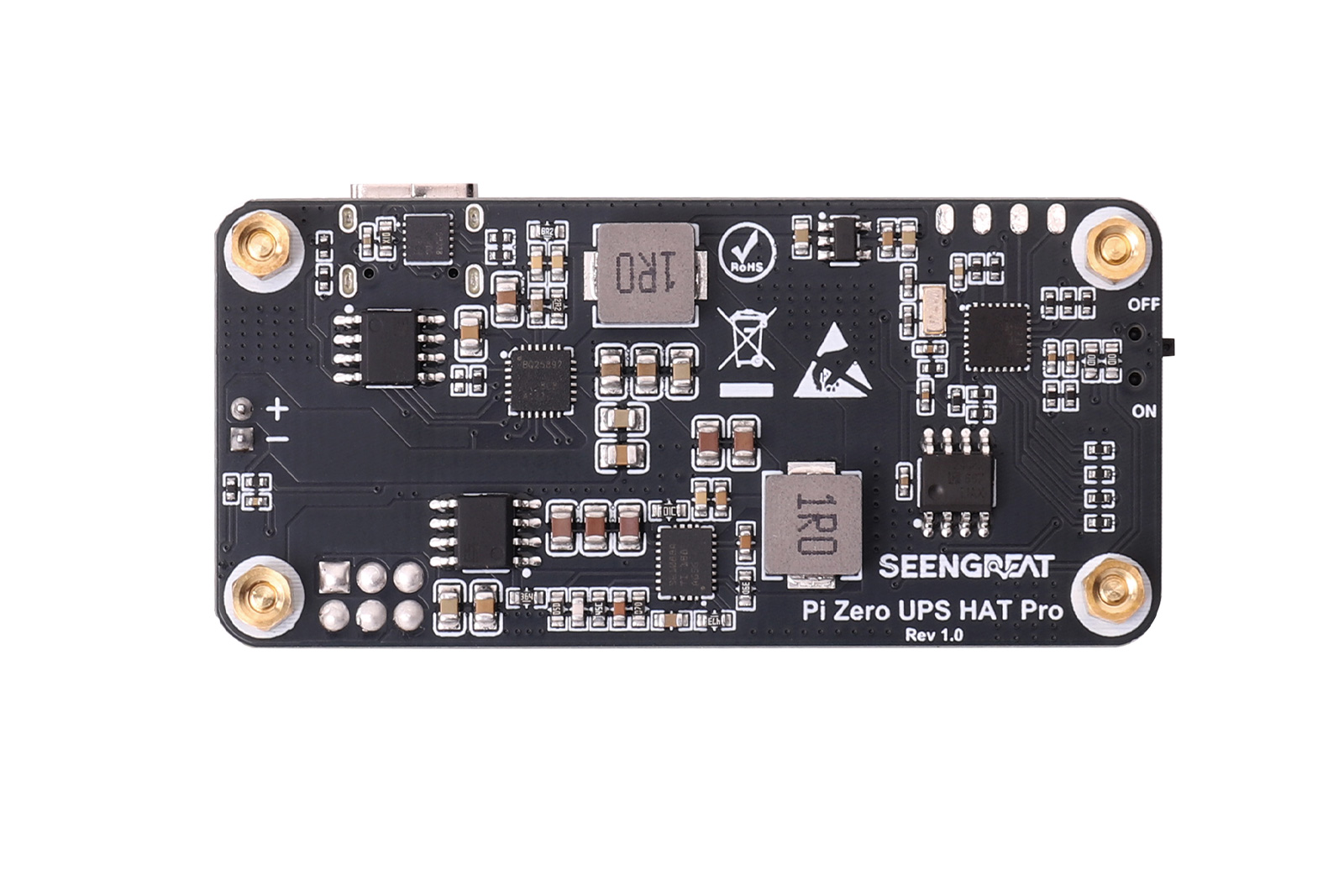
The Pi Zero UPS HAT Pro is an intelligent lithium battery uninterruptible power supply (UPS) expansion board designed specifically for the Raspberry Pi Zero series. It integrates battery charging, power management, battery monitoring, and 5V regulated output, providing external power and battery backup power for the Raspberry Pi.
The product supports USB-C power input and can negotiate 5V, 9V, or 12V input voltages with compatible power adapters to meet usage requirements in different power supply environments.
Through the IIC communication interface, users can directly view operating data such as battery voltage, current, and battery percentage in the Raspberry Pi terminal or web management interface. Users can also adjust the charging current and full-charge voltage according to the actual battery specifications used, achieving flexible battery charging management.
The onboard four LED battery indicators can visually display the current battery level and indicate the charging status through dynamic lighting effects. Users can quickly understand the basic battery status without logging into the management interface.
1.2 Product Features
- Intelligent UPS Backup Power: Integrates battery charging, power path management, and 5V boost output.
- USB-C PD Input Support: Can negotiate 5V, 9V, and 12V input voltages, compatible with USB-C PD power adapters that provide corresponding voltage levels.
- IIC Communication & Real-time Monitoring: Communicates with the Raspberry Pi via the IIC interface, supporting the reading of operating data such as battery voltage and current.
- Four LED Battery Indicators: Intuitively view the current battery capacity status.
- Programmable Power Management: Battery status queries and parameter configuration can be performed via Raspberry Pi terminal commands or the web interface.
1.3 Product Specifications
| Parameter | Specification |
|---|---|
| Model | Pi Zero UPS HAT Pro |
| Battery Interface | PH 2.0 2-Pin, single-cell 3.7V lithium battery interface |
| Input Interface | USB Type-C (Supports 5V, 9V, 12V) |
| Output Voltage | External power + battery power: Peak output 5V 3APure battery power: Max output 5V 1.5A |
| Battery Full Charge Voltage | Default 4.096V; Adjustable: 3.840V - 4.096V |
| Charging Current | Default 960mA; Adjustable: 64mA - 1496mA |
| Max Quiescent Current (Non-charging/discharging state) | 6.3mA |
| Sleep Current (Sleep state) | 2.1mA |
| Battery Specification | 803040 specification polymer lithium battery |
| Through-Hole Diameter | 2.5mm |
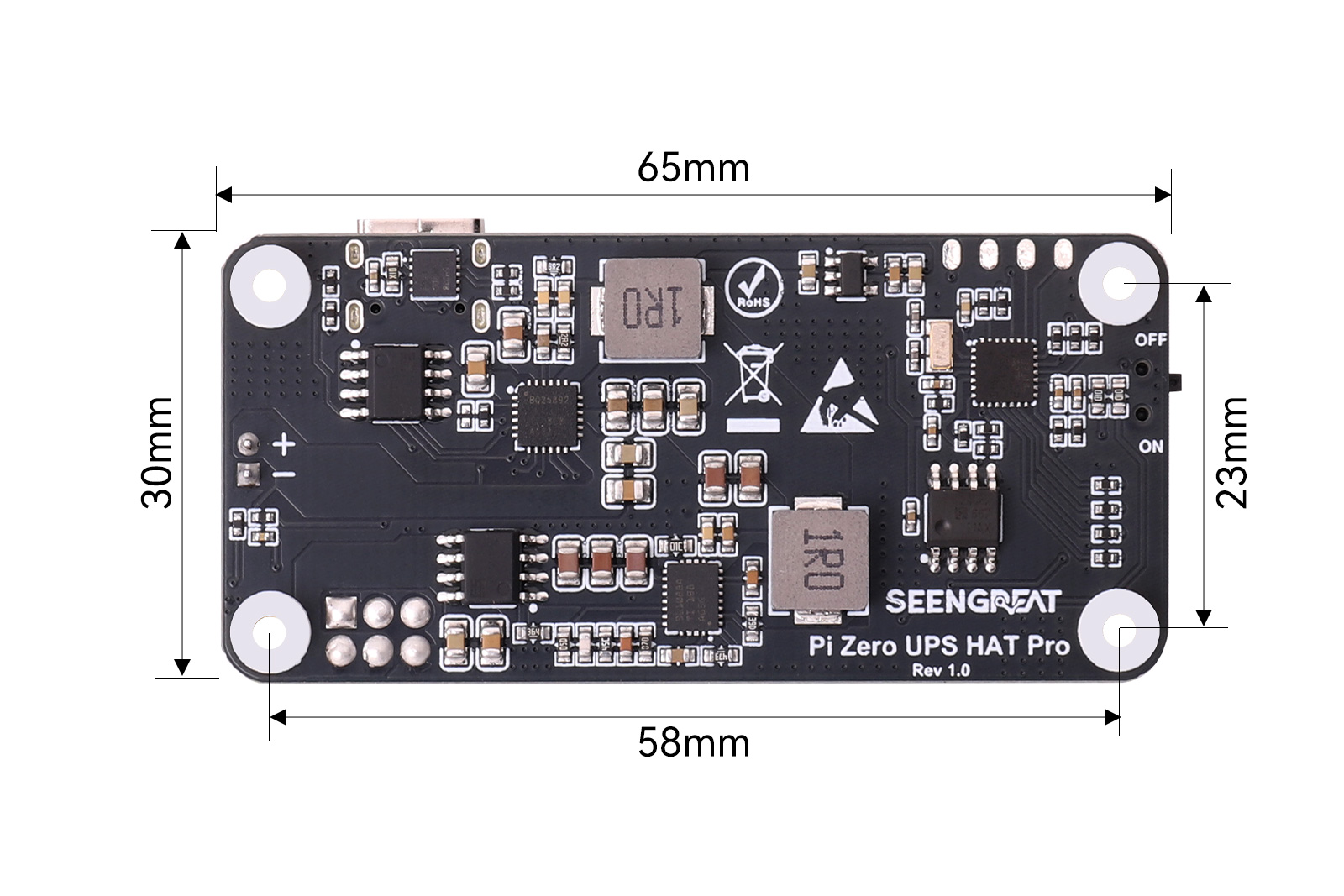
| Dimensions | 65mm (L) x 30mm (W) |
II.Usage
2.1 Resource Overview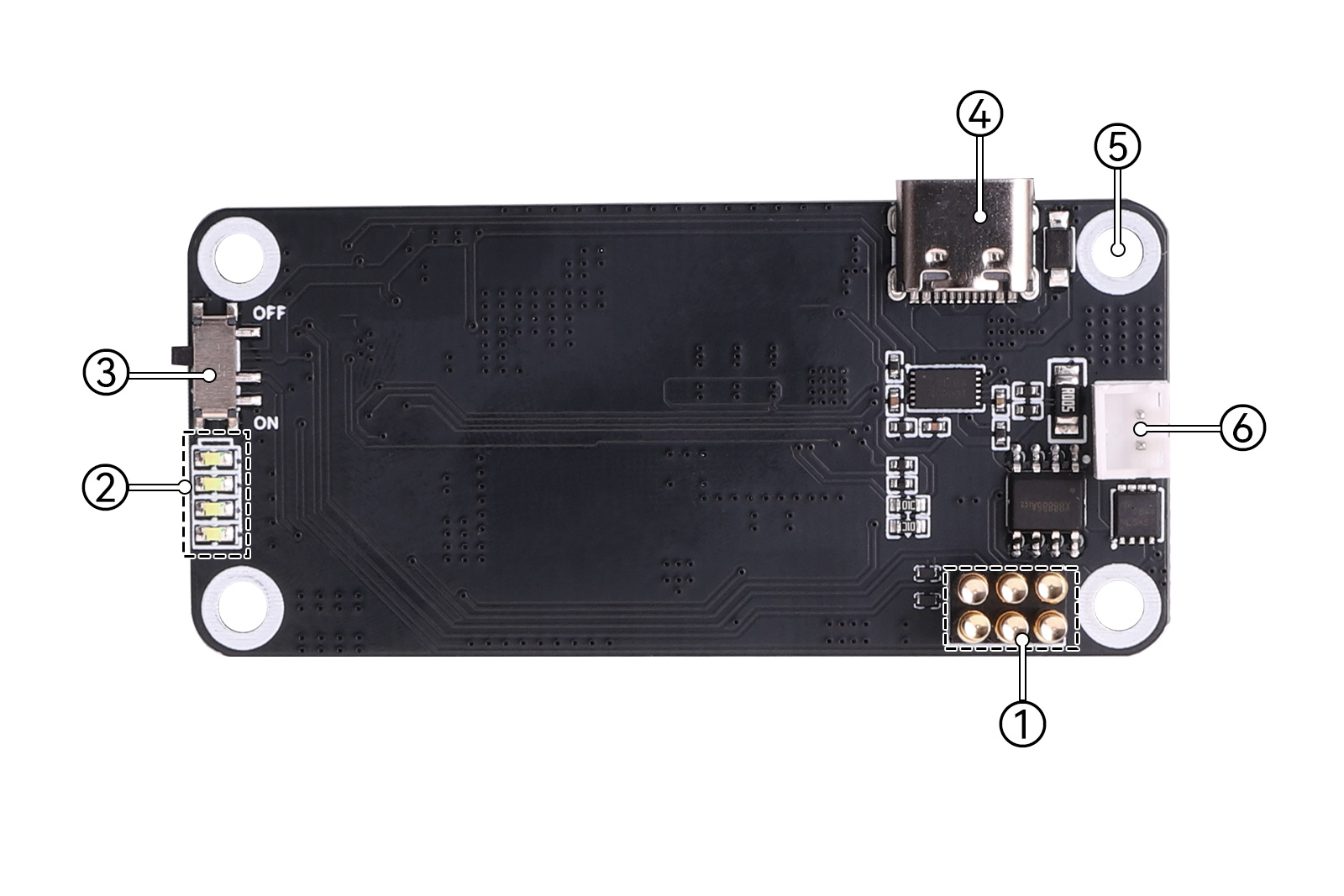
[Figure 2-1: Pi Zero UPS HAT Pro Resource Overview]
① Power & Communication Pins
② Battery Level Indicators
③ Output Power Switch
④ USB-C Connector (Supports USB PD input, negotiates 5-12V)
⑤ M2.5 Mounting Holes
⑥ PH2.0-2P Battery Connector (Pay attention to battery polarity when installing)
2.2 Usage Instructions
Enable I2C on the Raspberry Pi:
sudo raspi-config
# Enable Interface Options -> I2C -> Enable
sudo reboot
Download and extract the program, navigate to the program directory, grant file permissions, and install:
chmod +x install.sh uninstall.sh
./install.shups-cli version
ups-cli --lang en statusCommon Terminal Commands:
| Operation | Command | Notes |
|---|---|---|
| View current battery status | ups-cli --lang en status | - |
| View program version | ups-cli version | - |
| Check device connection | ups-selftest --probe | - |
| Temporarily start web page (local) | ups-web --host 127.0.0.1 | - |
| Temporarily start web page (trusted LAN) | ups-web --host 0.0.0.0 --port 8080 | - |
| Close foreground web page | Press Ctrl+C in the terminal running the web page | - |
| Start background web page only | systemctl --user start seengreat-ups-web.service | - |
| Stop background web page only | systemctl --user stop seengreat-ups-web.service | - |
| Check background web page status | systemctl --user status seengreat-ups-web.service | - |
| Modify charging target current | ups-cli current 960 | Sets charging current to 960mA |
| Modify charging cutoff voltage | ups-cli voltage 4096 | Sets charging cutoff voltage to 4.096V |
| Set battery nominal capacity | ups-cli capacity 1000 | Sets capacity to 1000mAh |
| Replace battery and recalibrate | ups-cli battery-replace 1500 --confirm | Replaces battery with 1500mAh capacity and resets learning data |
| Handle SOC abnormality | ups-cli soc-reestimate --confirm | Rebuilds SOC estimation state |
| View device RTC | ups-cli rtc | - |
| Write Raspberry Pi time to RTC | ups-cli rtc-sync |
Web Interface Usage:
Start the web control service by entering the following command in the Raspberry Pi terminal:
ups-web --host 0.0.0.0 --port 8080
# Replace 0.0.0.0 with the Raspberry Pi's current LAN IP, e.g., 192.168.0.3
Connect your computer or mobile phone to the same LAN as the Raspberry Pi, open a browser, and enter 192.168.0.3:8080 to access the web control page.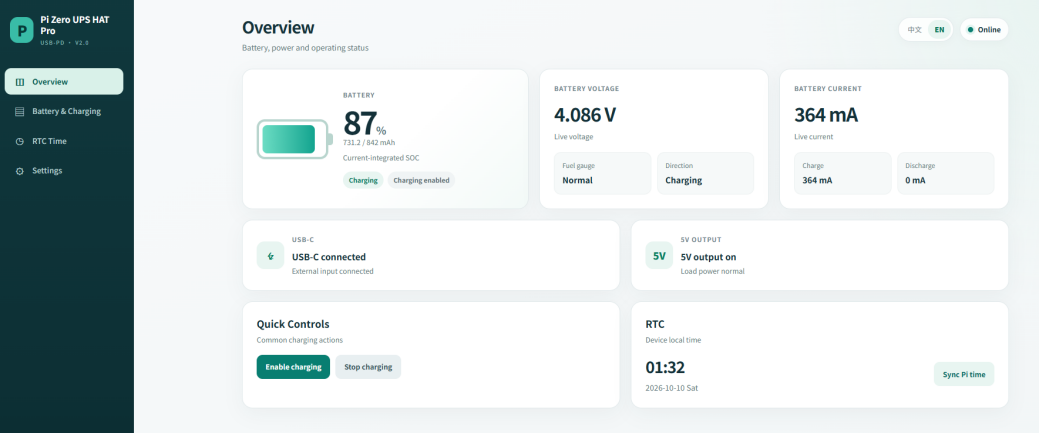
[Web Interface Screenshot]
On the web interface, you can quickly perform charging management operations and view the current battery status more intuitively.
2.3 Product Assembly
To ensure operational safety and hardware reliability during the hardware assembly process, please strictly follow the procedure below:
Before assembly, confirm that the power slide switch on the board is set to the "OFF" position. At this time, the 5V output is disconnected. Align the power & communication pins of the Raspberry Pi Zero mainboard precisely with the expansion board. Use the included M2.5 copper standoffs and screws to tighten them in a diagonal sequence in two steps to ensure there is no misalignment or floating between the mainboard and the expansion board.
2.4 Battery Capacity
- Battery Capacity: When the battery capacity changes due to battery replacement, adding/removing batteries, etc., it is recommended to reset the system's battery capacity. The default system battery capacity is 1000mAh. There are two ways to reset the battery capacity:
ups-cli capacity xxxx. Method 2: Set the battery capacity directly using the web interface (provided the web service is enabled on the Raspberry Pi). The battery capacity learning process requires fully charging the battery first and then discharging it to the low-voltage protection state. It is not recommended to use a high discharge current during the discharge phase of the capacity learning process. Otherwise, high-current discharge will cause the system to learn a smaller battery capacity due to the battery's internal resistance. Generally, a discharge current of 100mA ~ 500mA is recommended.
2.5 Battery Capacity Learning Conditions
The firmware passively integrates the net battery current during normal charging and discharging. It does not actively discharge, cut off charging, or change the UPS power supply path for learning purposes. The strategy adopts trusted reference points, valid SOC spans, sampling coverage, and mutual verification of a second independent candidate before allowing the confirmed capacity to be updated. If conditions are not met, it continues to use the nominal capacity or historical trusted capacity.
Learning does not require the user to force the battery to the protection action, nor does it guarantee that daily fragmented cycles will complete confirmation. The current parameters are: at least 50% reference SOC span, 99% sampling coverage, and a candidate difference within 15%. These are engineering rules, not guarantees of actual capacity accuracy. By default, only the 4.096V charging regulation setting allows capacity confirmation.
If replacing the battery cell, please use the battery-replace command and set the true nominal capacity of the new cell.
SOC and capacity are estimates: they cannot be used as the sole protection basis for preventing battery over-discharge or thermal runaway.
2.6 Simulated RTC Function
Manual synchronization: ups-cli rtc / ups-cli rtc-sync.
If you want to automatically restore from RTC during Linux offline startup and write back to RTC after networked NTP synchronization, you must separately install the optional system integration (which will change the boot configuration).
sudo ups-rtc-system install
sudo reboot
timedetectl
sudo seengreat-ups-rtc status
The optional integration will occupy the DS3231-compatible interface at 0x68, with the configuration dtoverlay=i2c-rtc,ds3231.
Before installation, check whether 0x68 conflicts with existing HATs or system RTC overlays; the boot configuration paths may vary across different systems.
2.7 Precautions
- If the discharge current is large during discharge, the battery voltage may quickly reach 3.0V due to the battery's internal resistance, triggering low-voltage protection. At this time, the actual capacity will be somewhat lower than the system-displayed capacity ratio. This is a normal phenomenon.
- Regarding battery charging power: If a battery of a different capacity is used, please set the battery charging current and full charge voltage according to the actual situation. It is recommended that the charging capability of general polymer lithium battery packs does not exceed 1C. For example, for a 1000mAh battery pack, the recommended charging current setting is 1000mA.
The board supports USB-PD input and can negotiate 5V, 9V, and 12V input. The negotiation conditions are as follows:
Set RDO = 12V / 2A.Charger capabilities: 15V/3A, 12V/1A, 9V/3A.
- 15V profile: 15V > 12V, cannot negotiate to 15V (voltage exceeds limit).
- 12V profile: 12V = 12V, but charger 1A < 2A, cannot negotiate 12V (current capability insufficient).
- 9V profile: 9V < 12V, and charger 3A > 2A, can handshake at 9V.
5. The onboard LED indicator definitions are as follows:
7. When installing, please confirm the battery polarity first, and then connect the battery. Before assembly, turn the power switch to OFF. After securing the board and Raspberry Pi Zero, turn the power switch to ON.Board LED Status Introduction 0% < SOC ≤ 5%: LED1 fast flash, frequency 2MHz 5% < SOC ≤ 10%: LED1 slow flash, frequency 1MHz 10% < SOC ≤ 25%: LED1 solid on 25% < SOC ≤ 50%: LED1, LED2 solid on 50% < SOC ≤ 75%: LED1, LED2, LED3 solid on 75% < SOC ≤ 100%: LED1, LED2, LED3, LED4 solid on
8. For more operation commands, please refer to the attached document "User Manual".